পোস্টগুলি

Banglarshiksha portal Helpline

ছবি
Link of various websites are given below. Click….. Click👉 Banglarshiksha e-portal Click👉 Banglarshiksha sms-portal Contact no…….. Banglarshiksha e-portal  📞+91 6289355392 Banglarshiksha sms portal - 📞+91 6289352676 Mail to….. Banglarshiksha e-portal  📤contacteportalwb@gmail.com Banglarshiksha sms portal   📤contactschoolmanagementsystem@gmail.com Click👉 My website to help Click 👉 Whatsapp group

How to design a school logo on Banglar Shiksha sms portal?

ছবি
Click & Follow 👉 YouTube https://youtu.be/fqnNt7aqtNY NB- Watch the YouTube video first, then click the link below. PicsArt link- https://play.google.com/store/apps/details?id=com.picsart.studio Image compressor- https://play.google.com/store/apps/details?id=com.appsuite.hasib.photocompressorandresizer Click here to design school website on Banglar Shiksha portal. ____________________________ You can join our Whatsapp  group-1  or  group-2  to get instant updates. Subscribe to my blog to find out more information . Like my  facebook page Follow  YouTube                       Twitter

How to upload profile picture of students on mobile in Banglarshiksha e-portal?

ছবি
How to upload profile picture of students on mobile in Banglarshiksha e-portal? Click & Follow👉 YouTube

How to create a password on Banglar Shiksha sms portal again if the teacher forgets the login password?

ছবি
School Login on Banglar Shiksha sms portal. Open 👉Sms-portal Login 👉 School login Setup Default Password on Banglar Shiksha sms portal Click👉3line manu The navigation menu will open. Click👉Staff Look at 👉 Teacher list (at new window) Look at👉set Default Password Click👉 🔁  ; symbol ; at Teacher row. The teacher's login password will be created as default.  Immediately this text will appear above- Password reset successfully, please login with default password. Teacher Login to Banglar Shiksha sms portal. Click-👉3line manu Click 👉 Logout Login👉  Please select Role🗝️HoI/Teacher/s Username 🗝️Teacher ID Password 🗝️ password (small letter) Type 👉 captcha. Click👉Login Reset password on Banglar Shiksha sms portal. Chang Your password(New page) Old password 👉 password (small letter) New Password 👉*******(Teacher@2020) Confirm password 👉 same to New password Click👉 update Again, login with new password. Follow- Yo...

How To Determine School Location In Banglarshiksha E-Portal?

ছবি
Download👉 an app  (Open the app while in school) App settings👉 click📥3line manu                              Click📥 settings                               Click📥 coordinate format                               Click 📥 Degrees, Minutes, Seconds                              Click '⬅️'symbol   Note Down📝 Latitude &                                             Longitude Click👉Map Check out the location of your school Login👉 Banglarshiksha e-portal Look at 👉 Location updates Putting 👉The first three lines have to be set the degree, minutes and s...

How to upload student profiles?How to upload student profile pictures?

ছবি
Login 👉 Banglarshiksha e-portal Click 👉 2019 Student Mgnt. New open page👉Complete the page with caution. Notice👉How to upload student profile pictures?  Click👉  YouTube1 +👉 YouTube2 Click 👉 Save NB 👉 Can't change the items listed below. 1. Academic year 2. Academic date 3. Present Class 4. Previous class 5. Previous section 6. Previous steam 7. Previous roll no. 🗣️ Thanks

How to edit student profiles?

Login to👉  Banglarshiksha e-  portal   school Go to 👉 Student Management Click 👉 Student Profile Edit/Download Putting 👉 Student Code Click👉 In the top right, click on the square that have the Green color🙏🙏🙏🙏🙏🙏🙏🙏🙏🙏 NB 👉 Can't change the items listed below. 1. Academic year 2. Academic date 3. Present Class 4. Previous class 5. Previous section 6. Previous steam 7. Previous roll no. 🗣️ Thanks

Book Distribution on Banglar Shiksha sms portal

ছবি
Login Banglar Shiksha SMS portal (School) Enter the site  👈 click here. Please select role-School Username-School ID Password-********* Type captcha Click ->login BDA on Banglar shiksha sms portal. Click on 3line menu (Navigation menu).👇 Click on "Book Distribution" option under left sidebar (Navigation menu)👇 Click on "BDA" option under Book Distribution option under Navigation menu.👇  A new window will open.👇 Select Medium & class☝️ Click- Search☝️ select teacher (at right side)☝️1 no. then select the section (at left side).☝️2 no. Click - save.☝️3 no. please do it step by step for a particular class,section and teacher. Once you have done that, you can see the class, section, and books as per allocation. after assign and save, it will reflect besides on the section. Logout☝️ School login. NB -This(BDA) can be done from school/HoI login but not from teacher login. Teache...

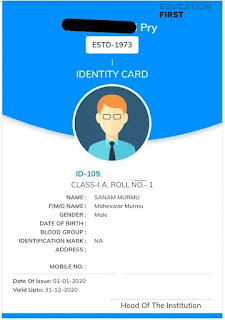
Student ID card on Banglar Shiksha portal

ছবি
I-card for school students in West Bengal I-card can be made for the students of West Bengal at Banglar Shiksha Portal. This I-card is very necessary for the students. The school where the student is studying generates I-card from Banglar Shiksha portal.This I-card is given to students for free. Login to Banglar shiksha sms portal Enter the site   👈click here Please select role-(HOI/Teacher/staff) or school Username-Class Teacher unique ID /School ID Password-*********/******** Type captcha Click ->login Download I Card on Banglar shiksha sms portal Step 1- Click- 3line left corner bar. The navigation bar will open. Step 2- Click -> "Student"option under the Navigation menu. Step 3- Click->Student profile under student option. A new window will open. Step 4- Choose Medium, Select class & section Click->Search Step 5- See Action column ->There are three square, click on the last square.(per student)

How to load Monthly student Attendance???

Step 1- Enter the site Please select role-(HOI/Teacher/staff) Username-Class Teacher unique ID Password-********* Type captcha Click ->login Step 2- Click- 3line left corner bar Step 3- Click ->Student Step 4- Click- student Attendance Step 5- Monthly Student Attendance Select Month Select Medium Select Class Select Section Click- search Step- 6 Working days- Per Student-> putting-Total no. Of days present month Click-> save